
TEaMs Courses Entry Instructions
To be completed:
TAPPS Course Dashboard
- 1. TEaMs Courses will be taken on the TAPPS Course Dashboard.
- 2. Each person will need to register for an account and reply to an email prior to beginning the TEaMS courses.
- 3. Go to tapps.biz
- 4. Under Resources, click on TEaMs Courses
- 5. Click on the red TEaMs Courses button.
- 6. Create a Course Dashboard Account or log in if you already have an account.
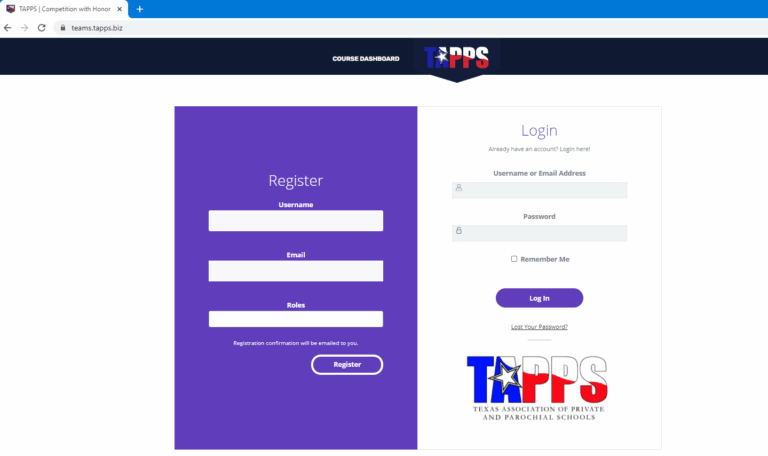
- a. Fill out the Register Section (purple side).
- i. Create a username. Make it something you can remember. Ex. First part of email address or FirstMiddleLastBirthYear: JohnKSmith2005
- ii. Enter your email address.
- iii. Role: Pull down menu. Choose all roles that apply to you.
- iv. Click Register
- b. Check your Email for the Registration Confirmation.
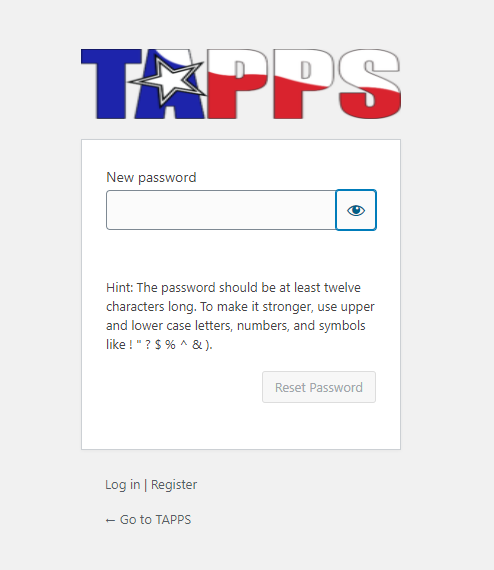
- c. The Confirmation email will have a link to set a password. Click the link in the email to create a password.
- d. Create the password. Click the view password icon to be sure it is how you intend it to be. Be sure to write it down. Click the view password i
- icon to be sure it is how you intend it to be. Be sure to write it down. Click Reset password.
- 7. To login to the Course Dashboard: go to teams.tapps.biz
- a. On the LOGIN side (white side), Enter Username or email address
- b. Enter Password
- c. Login
- Entry Instructions
- To Take the TEaMs Courses:
- Go to teams.tapps.biz and login
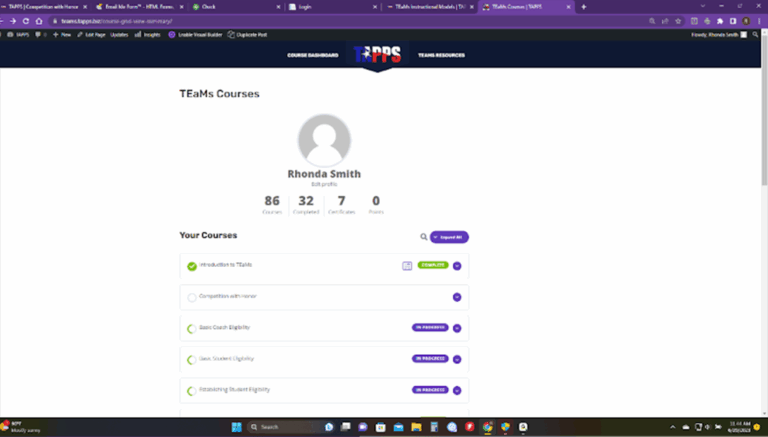
- Your courses should show up in a grid view, as shown below. Click on the desired course and follow the directions.
- Any time you are needing to exit TEaMs, make sure you Log Out. Do not just use the X to close the window.
- You must complete all of the courses that are designated as “2024” and “Required by all Coaches.”
- Once you have completed all 14 of the Coach Courses, this information will be pushed to TMS and will certify you as TEaMs compliant.